Archive

Posts Tagged ‘PlayTV’

Japan Getting DVR Kit for PlayStation 3

January 15th, 2010 Niraj Shah 4 comments

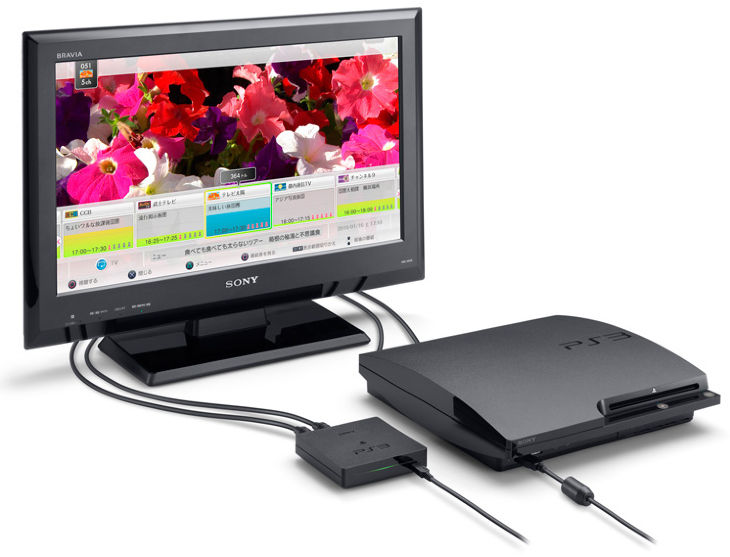
Sony is readying a new PS3 accessory that will let owners turn the console into a digital video recorder. The kit, dubbed “Torne”, is set to become available in Japan this March. Torne comes with a digital tuner that plugs into the PS3 via USB and the software required for viewing, browsing and recording programs. The latter comes on a Blu-ray disc and can be installed onto the PS3’s hard drive. Torne works similar to the PlayTV device that was released in Europe back in September 2008.

Read more…

Categories: News Tags: , ,

PlayTV Updated to v1.21

October 22nd, 2009 Niraj Shah 2 comments

The PlayStation 3 PlayTV software has been updated to v1.21 today. The biggest change in the 24MB patch is the ability to watch, pause and record high-definition TV, though it’s not clear which countries this feature applies to. Other features include multi-channel audio playback, improved remote play usability, better SD upscaling, and support for Sony’s Aino remote play.

Read more…

Categories: News Tags: ,

PlayTV UK Channel Re-Scan

September 29th, 2009 Niraj Shah 3 comments

If you live in the UK and are using PlayTV to watch and record you TV shows, you will need to re-scan your channels tomorrow. On the 30th Sept you will need to re-scan your channels to make sure you can still receive all the digital channels through your PlayTV box. Simply go to ‘Settings’ choose ‘Set-up’ then ‘Channel-scan’ and your done. If you own a freeview TV, you will also need to re-tune your TV.

Read more…

Categories: News Tags:

PlayTV updated to version 1.10

April 7th, 2009 Niraj Shah No comments

­A patch for the
European digital TV add-on, PlayTV, has now been released bringing it
to version 1.10. The patch was announced a few days ago and is now finally available to download. You can update your version by launching PlayTV and selecting the Software Update option from the main menu. The new patch automatically upscales Standard Definition (SD) broadcasts to High Definition (HD). A few sound enhancement have been made too, such as volume control with
the official PS3 Blu-Ray remote and audio normalisation (similar to the
feature added to music playback in firmware 2.70).

You can now also jump directly into TV mode from the XMB, so you don’t
need the hassle of going through the PlayTV menus beforehand. In terms
of playback, other than the sound changes, the only other change is
slightly better rewind and fastforword handling, with new speeds added.

Categories: News Tags: ,

PlayTV Impressions

September 20th, 2008 Niraj Shah 3 comments
­­

PlayTV is a PlayStation 3 accessory that turns the console into a personal video recorder (or PVR). Retailing for £69 (approx ?85), the device features twin tuners allowing you to record a program while watching another. The device uses free over-the-air TV frequencies to bring TV to the PS3. For us in the UK, we get over 90 different channels; over 40 of which are actual TV channels while the rest are radio and interactive channels. The device is currently available only in Europe (selected countries only).

The PlayTV device weights less than 100g and is roughly 14cm x 7cm x 4cm. It is powered using the PS3’s USB port so no external power device is needed. PlayTV is available in the UK, Germany, Italy, Spain and France, with other countries to be announced soon. It is unlikely the device will make it to North America any time soon as digital over-the-air TV is hard to come by. If anything, North America may get a similar device in 2009.

Installation is easy – simply pop in the DVD and follow the instructions. Some installation is required to copy the PlayTV program to the PlayStation 3; during the installation a short tutorial video is played to help with the waiting. The installation only takes a few minutes to complete, after which a [TV] icon will appear between the [Video] and [Game] XMB icons. When you launch the program for the first time, you are taken through the setup process. Once the setup wizard has searched for available channels you are ready to go. The entire process takes around 10 minutes (the channel search time will depend on your region). You can use a indoor aerial but for best performance, a outdoor one should be used. We were able to pick up all available channels using an indoor aerial.

There are seven options on the PlayTV main menu: Live TV, Library, Schedule, Settings, Manual, Find and Record, and Guide; each of which are self explanatory. With the two built-in tuners in the device you are able to record from one channel while watching another, unfortunately you cannot record from two different channels at once. You are also able to pause Live TV and rewind or forward within the buffer zone. Depending on your settings, PlayTV can buffer when paused or all the time offering you more control on how you pause and rewind TV. Obviously, you cannot forward past the buffer zone.

You can schedule programs to record using the TV Guide or by pressing the SELECT button on the Wireless Controller or Blu-Ray Remote. Unfortunately, the recorded programs can only be played back using PlayTV – you cannot access the video files from the [Video] menu on the XMB. This is because the video files are encrypted and stored in the [Game Data Utility] menu under [Game]. You can see a list of all the programs scheduled to be recorded on the Schedule. The TV Guide give you an estimate on how much disk space a program will take up if recorded.

If you are away when a program is scheduled to record, the PlayStation 3 will turn itself on. If you are playing a game, the PS3 will also record in the background if you have enabled background recording. During background recording, however, quality of the game and recording may suffer. Background record can be enabled (or disabled) from the Settings menu. You cannot background record when playing PS2 games, and if a recording is in progress you cannot turn off the PS3 unless you cancel the recording.

You can playback and manage any recorded content from the Library. You can use the onscreen menu or the Blu-Ray remote to rewind, pause or forward the video as needed. The library also keeps a record of what channel the program was recorded from. PlayTV is only compatible with SDTV signals but the quality of recording is great. Depending on your signal, the playback of recorded content as well as Live TV is as smooth as using a normal TV set.

PlayTV is compatible with Remote Play so you can use your PSP to watch Live TV or playback content from your library. You can access all the features of PlayTV on the PSP so you can schedule programs, check the guide, watch Live TV or library content and even manage your library from anywhere around the world. Forgot to record your favorite show? As long as you have a PSP and access to a Wi-Fi Hot Spot, you can record or watch your program from anywhere. Of course, the quality of playback won’t be as good as accessing PlayTV through a direct Wi-Fi connection.

Using PlayTV and Remote Play via a private Wi-Fi connection, the quality if playback is near UMD quality. There is no noticeable lag but this depends on the signal quality and the speed of your Wi-Fi connection. Due to copyright issues, you cannot transfer video files to your PSP, which is a big disappointment. It would have been great if you could copy any recorded TV to the PSP to watch on your commute to work. Hopefully Sony decides to enable this feature as originally announced.

PlayTV is a well developed piece of kit. It is the perfect accessory for anyone who doesn’t already a PVR or digital TV service. The quality is great and works well with the PS3. There are only two major problems with the device: firstly, you must start a separate program in order to watch TV with adds to the loading times; and secondly, you cannot transfer files to an external device or the PSP. There is an software update option in the settings menu so hopefully Sony addresses these two issues in the future.

Check out our video of the device in action:

Categories: Impressions Tags: ,